Group Your Journey Reports by Day, Week, or Month
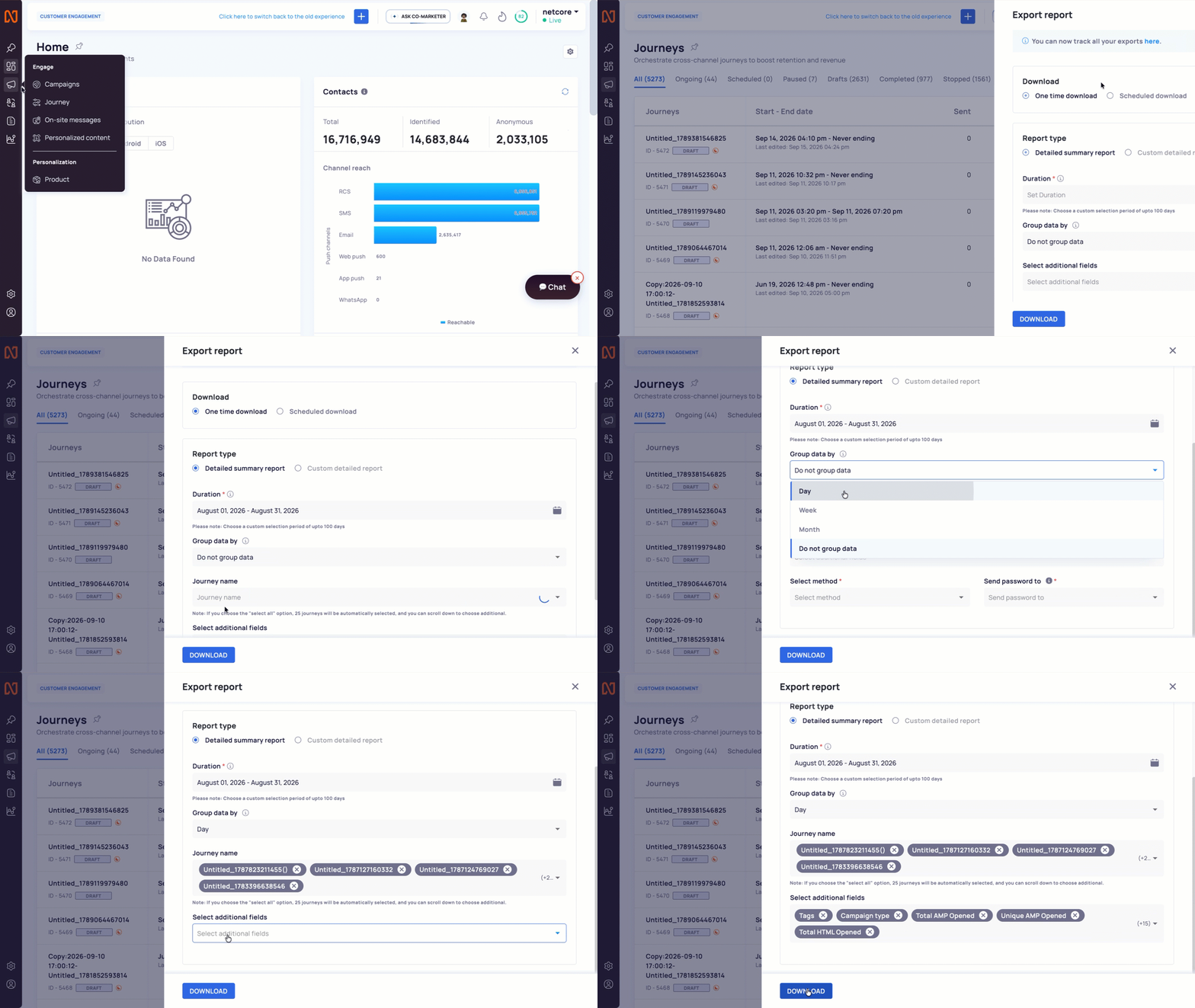
Until now, your journey summary report gave you one row for your entire selected duration.
Pull a 30 day report, and you got 30 days of performance squeezed into a single line. No day by day view. No way to compare one week against another without running separate reports.
That changes now. You can group your journey summary report data by day, week, or month, right from the export panel.
What’s New
Added a Group data by option to the journey summary report export panel.
Choose to group by Day, Week (Monday to Sunday), or Month, or keep the existing single row view with Do not group data option.
Get a new Grouped by duration column in your CSV that marks the exact period for each row.
Works for both one time downloads and scheduled downloads of the detailed summary report.
Why It Matters
No more manual date splitting: get daily, weekly, or monthly breakdowns in one export instead of running the report multiple times.
Spot trends faster: compare specific weeks or months side by side without extra spreadsheet work.
Cleaner CSVs: the new duration column tells you exactly which period each row covers, so nothing gets mixed up.
Prerequisites: Available only for the detailed summary report, not the custom detailed report.
On the CE dashboard, navigate to Engage > Journey > Export report > Group data by to try it out.
Read the documentation to know more.