Bulk Delete option for Draft Push Campaigns
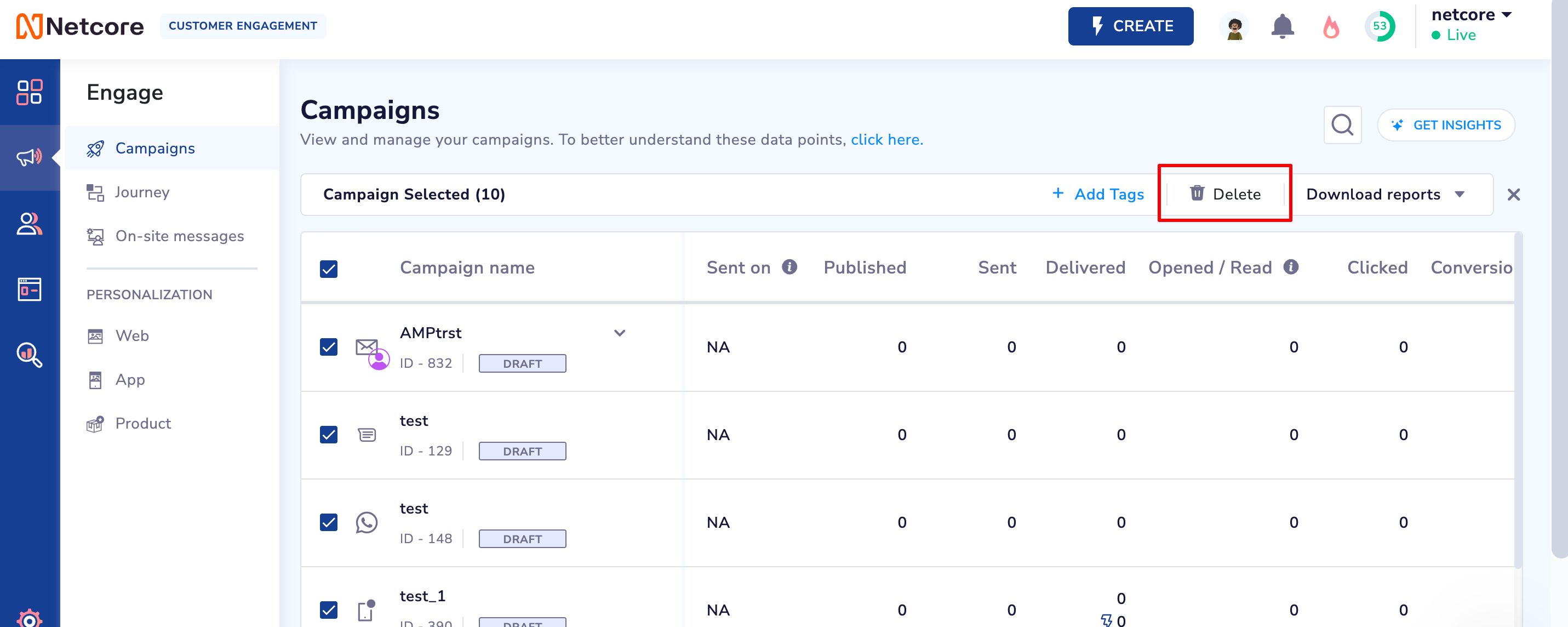
You can now delete draft campaigns in bulk from the Campaign section. This enhancement introduces a 'Delete' option via the standard bulk selection component. Users can select multiple draft campaigns and perform a single delete action.
🧩 Tip
Use the bulk select checkbox at the top of the campaign list to quickly select multiple drafts for deletion.
Watch Video
Key highlights:
✅ Only 'Draft' campaigns are eligible for deletion. Even if the user selects all campaigns, only those in Draft status will be processed for deletion.
✅ Applicable across all push channels — including Web Push, App Push, Email, SMS, APN, BPN, RCS, and WhatsApp — to maintain parity and provide a consistent user experience.
✅ RBAC-based access control: Delete action is enabled only for users with the required permissions.
🚫 If the user lacks permission, the Delete button appears grayed out with a tooltip:
“You do not have the necessary permissions to perform this action. Please contact your admin.”🧮 Draft campaign count is now visible in:
The listing page
Confirmation popup
Deletion success toaster message
⚠️ The Delete button is disabled (grayed out) when no drafts are available for deletion, with appropriate visual feedback.
This improvement addresses key feedback from our customers around onboarding friction and improves control over draft campaign clean-up.
❓ Quick FAQ’s
1. Which campaigns can be deleted in bulk?
Only campaigns in 'Draft' status can be deleted in bulk. Even if users select all campaigns, only drafts will be considered for deletion.
2. Is the bulk delete available for all campaign types?
No. This feature is only available under Push Campaigns. Other modules like Content, Online, and Journey do not currently support bulk selection and are therefore excluded.
3. Which channels are supported under bulk delete?
Bulk delete applies to all push channels, including:
Web Push, App Push, Email, SMS, APN, BPN, RCS, and WhatsApp.
4. What happens if a user selects all campaigns, but some are not drafts?
Only the selected draft campaigns will be deleted. Other statuses (e.g., Scheduled, Sent) will be ignored, even if selected.
5. What if there are no draft campaigns selected?
The Delete button will remain disabled (grayed out), and no delete action will be possible.
6. Can every user access the bulk delete feature?
No. Access is controlled via RBAC (Role-Based Access Control). Only users with the required permissions will see the active Delete option.
7. What happens if a user without permission tries to delete campaigns?
The Delete button will be grayed out and show the tooltip:
“You do not have the necessary permissions to perform this action. Please contact your admin.”
8. Where can users see how many drafts will be deleted?
The draft count appears in three places:
In the listing view
On the delete confirmation pop-up
At the success toaster message